Setup guide
Afterbrief works out of the box: install it, open any work item and declare an incident. This page walks through the first incident and then every setting worth knowing. Nothing here needs a Jira admin except installing the app and the site-wide defaults.
Works with
Jira Cloud: Jira (including what used to be Jira Software and Jira Work Management) and Jira Service Management (Free, Standard and Premium), in team-managed and company-managed spaces. Any work item type can be declared an incident. Confluence Cloud is optional, for postmortem pages; Slack is optional, for capturing the conversation. Jira Data Center and Server are not supported.
Install
- A Jira site admin installs Afterbrief, an app for Jira and Confluence from the Atlassian Marketplace. Installing it into Confluence as well is optional and only needed to publish postmortems as Confluence pages.
- Jira asks the admin to approve what the app may do. Each permission and why the app needs it:
| Permission | Why |
|---|---|
| Read Jira work | Read incidents, their changes and comments for the timeline, and corrective actions. |
| Write Jira work | Create corrective actions as work items, store the incident on its work item, post reminder comments. |
| Read Jira users | Pick an incident commander or an action owner, and name people on the timeline. |
| App storage | Timeline entries, postmortem text and settings, kept in Atlassian's storage for the app. |
| Read Confluence spaces and pages, write pages | Only for Move to Confluence: list spaces and create the postmortem page. |
| AI (Forge LLMs) | Draft with AI on paid plans and trials. The model runs on Atlassian's infrastructure. See AI drafts. |
The app makes no calls outside Atlassian. Slack reaches it through one signed inbound endpoint, and only if you set Slack up.
Your first incident
Declare it
Open any work item. In the sidebar, the Incident card offers Declare incident: pick a severity (SEV1–SEV4 by default) and confirm. The card then shows the severity, the commander, when it started and the state of the review, and the work item gains:
- a Timeline tab in the Activity section, next to Comments and History;
- a Postmortem panel;
- an
afterbrief-incidentproperty, so JQL can find it:issue.property[afterbrief-incident].severity = "SEV1".
Declaring does not reload the page. Jira draws the Timeline tab and the Postmortem panel when the work item loads, so the card offers Reload to show Timeline tab; until then the timeline is also in the postmortem window.
Capture the timeline
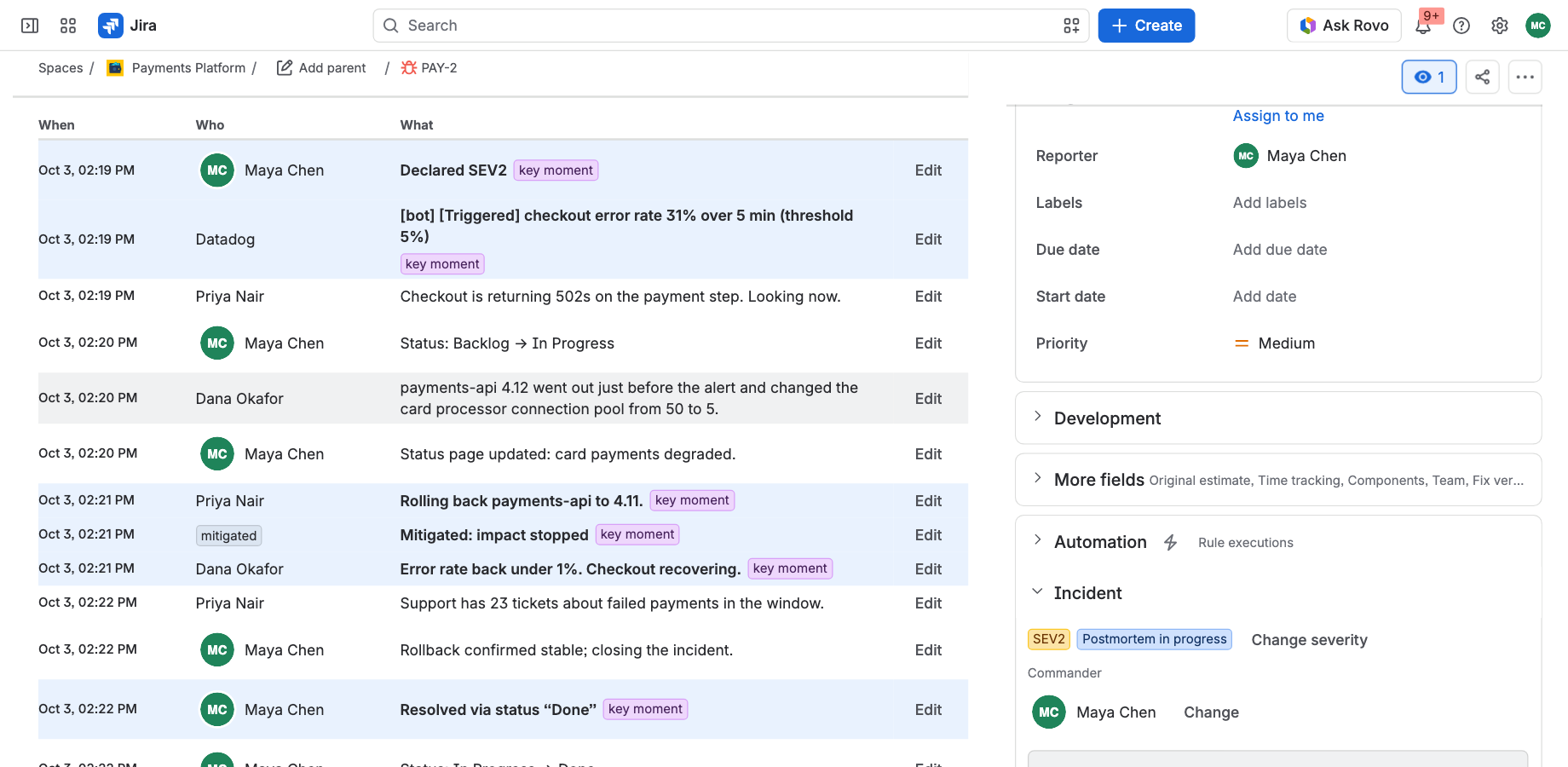
The timeline fills itself from:
- status changes and assignee changes on the work item;
- comments that start with
!(the marker can be changed per space).! Rolled back the deploybecomes a timeline entry. The text is read with each viewer's own Jira permissions every time, so a comment later restricted or deleted disappears from the timeline too; - Slack, if you link a channel or a thread (see Slack);
- notes you add by hand on the Timeline tab.
Any entry can be reworded, moved to the time it actually happened, flagged as a key moment or removed. Entries from comments are edited in the comment itself.
Mitigate and resolve
Mark mitigated when the impact has stopped, Mark resolved when the incident is over. Resolving starts the postmortem clock: the review is due a number of days later (5 by default). By default, moving the work item to a Done status resolves the incident too (switch this off in Incident settings).
Write the postmortem
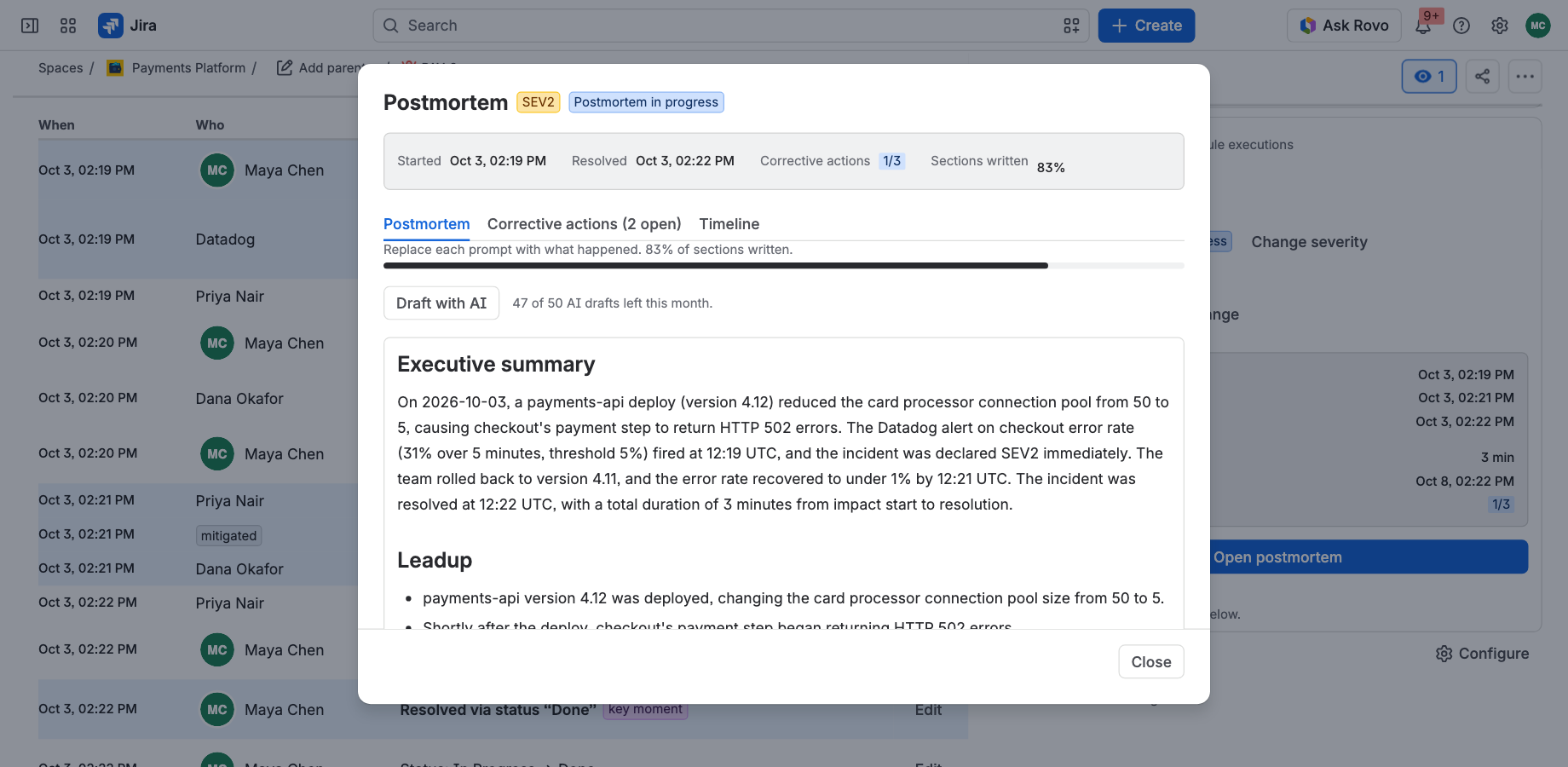
Open postmortem on the card. The postmortem follows the sections of the postmortem in Atlassian's public Incident Handbook: Executive summary, Leadup, Fault, Impact, Detection, Response, Recovery, Five whys, Blameless root cause, Backlog check, Related incidents and Lessons learned, each with its prompt. Replace the prompts with what happened; the progress bar counts the sections written.
- Draft with AI (paid plans and trials) writes every empty section from the description, the timeline and the actions, and leaves what you wrote alone. See AI drafts.
- Save draft keeps your work; closing the postmortem saves too.
- Publish in Jira marks the review published.
- Move to Confluence creates a page in the shape of Atlassian's postmortem blueprint, with your text and two live blocks: the timeline and the corrective actions, rendered from Jira. Confluence is the editor from then on.
Raise corrective actions
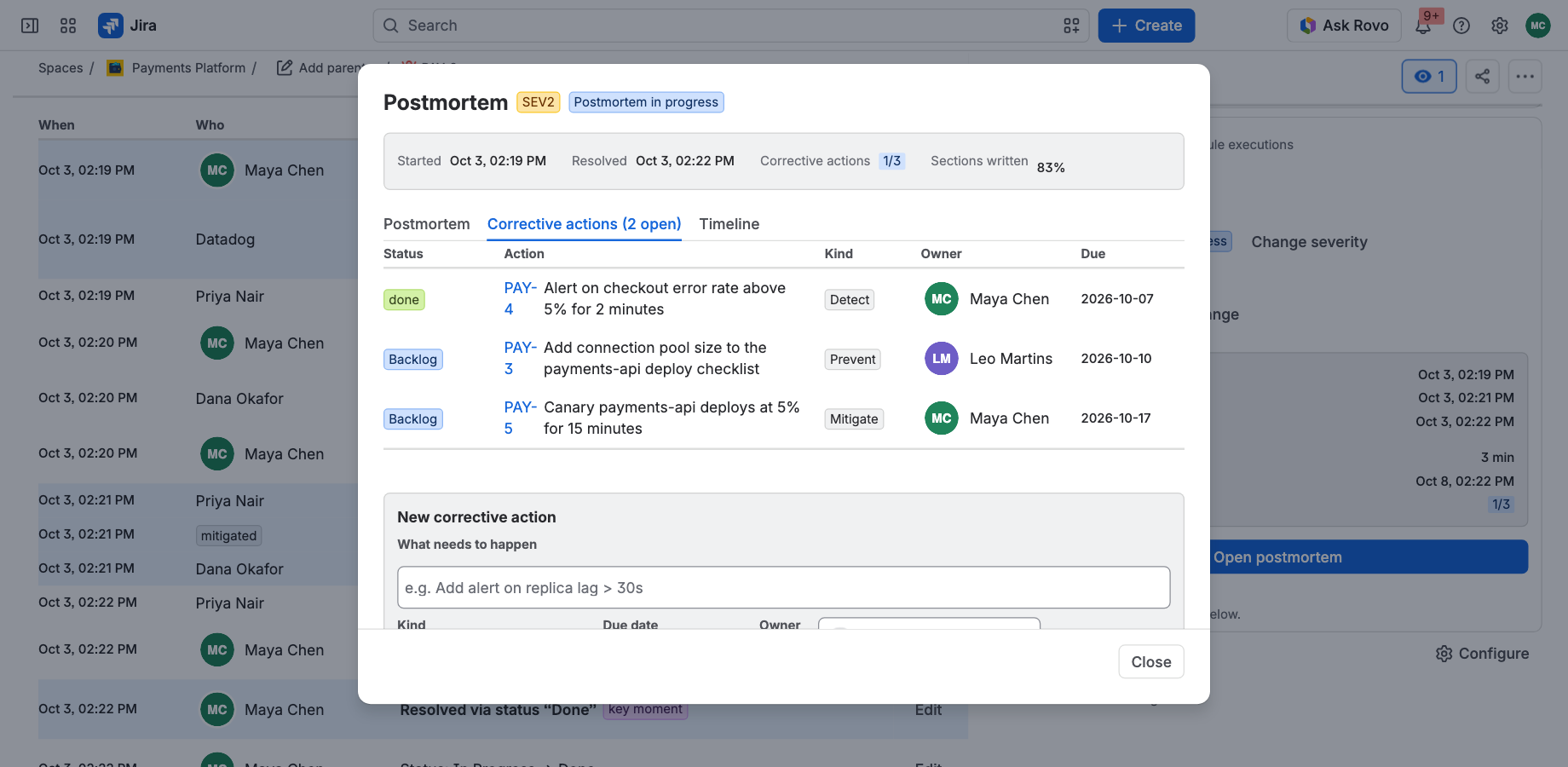
On the Corrective actions tab, each action becomes a Jira work item with a kind (prevent, detect, mitigate, process), an owner and a due date, linked to the incident. The incident card shows the roll-up (2/5 done, 1 overdue), and it stays current as the work items move. Actions can live in another space; people who cannot see that space see how many there are, not what they say.
Tracking across spaces
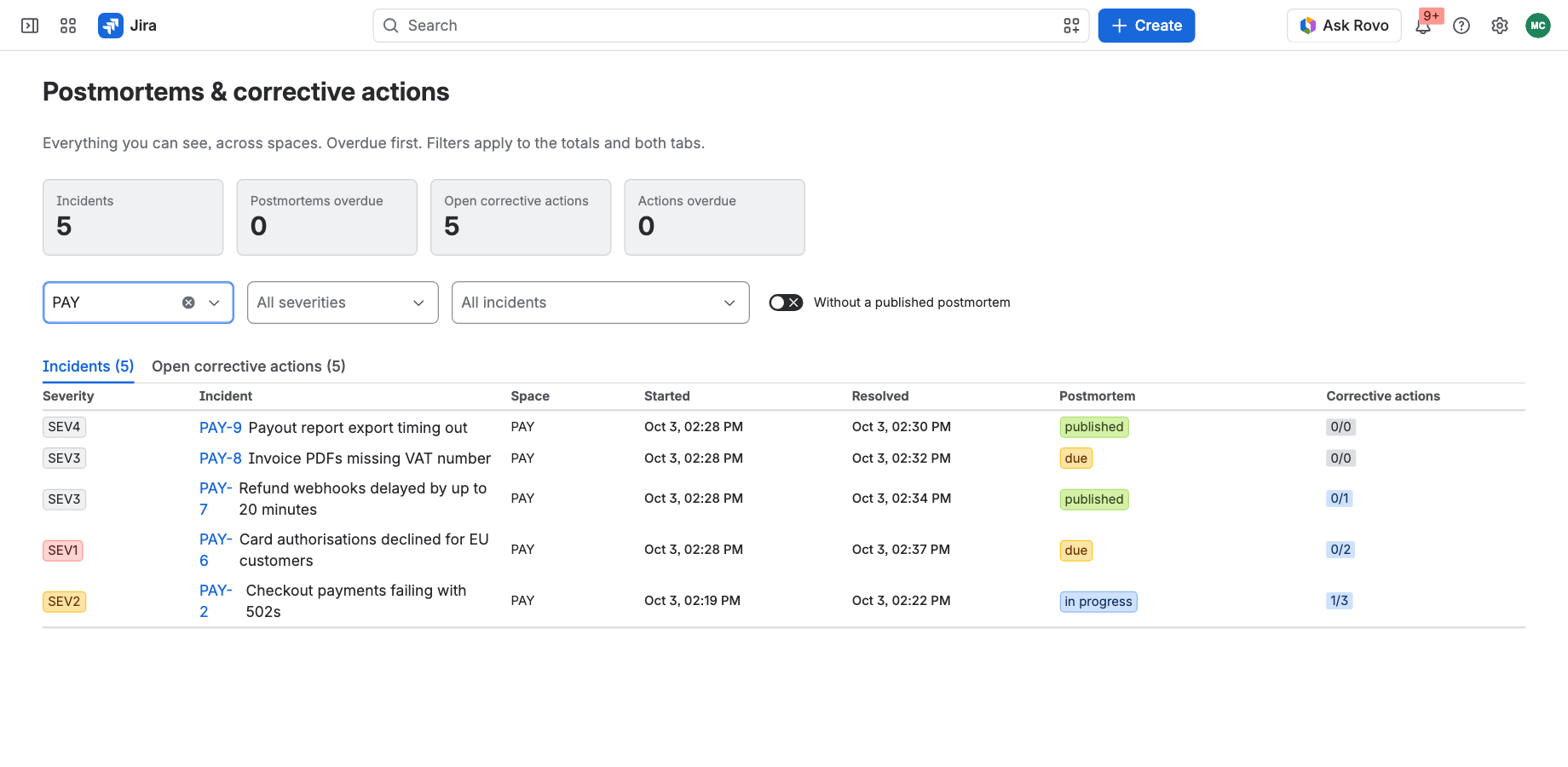
- Postmortems & corrective actions (Jira's Apps menu) lists every incident and every open corrective action you can see, across spaces, overdue first.
- Each space has an Afterbrief page with its incidents and metrics: incidents by severity per month, median time to mitigate and to resolve, postmortem completion and how many corrective actions get done.
Settings
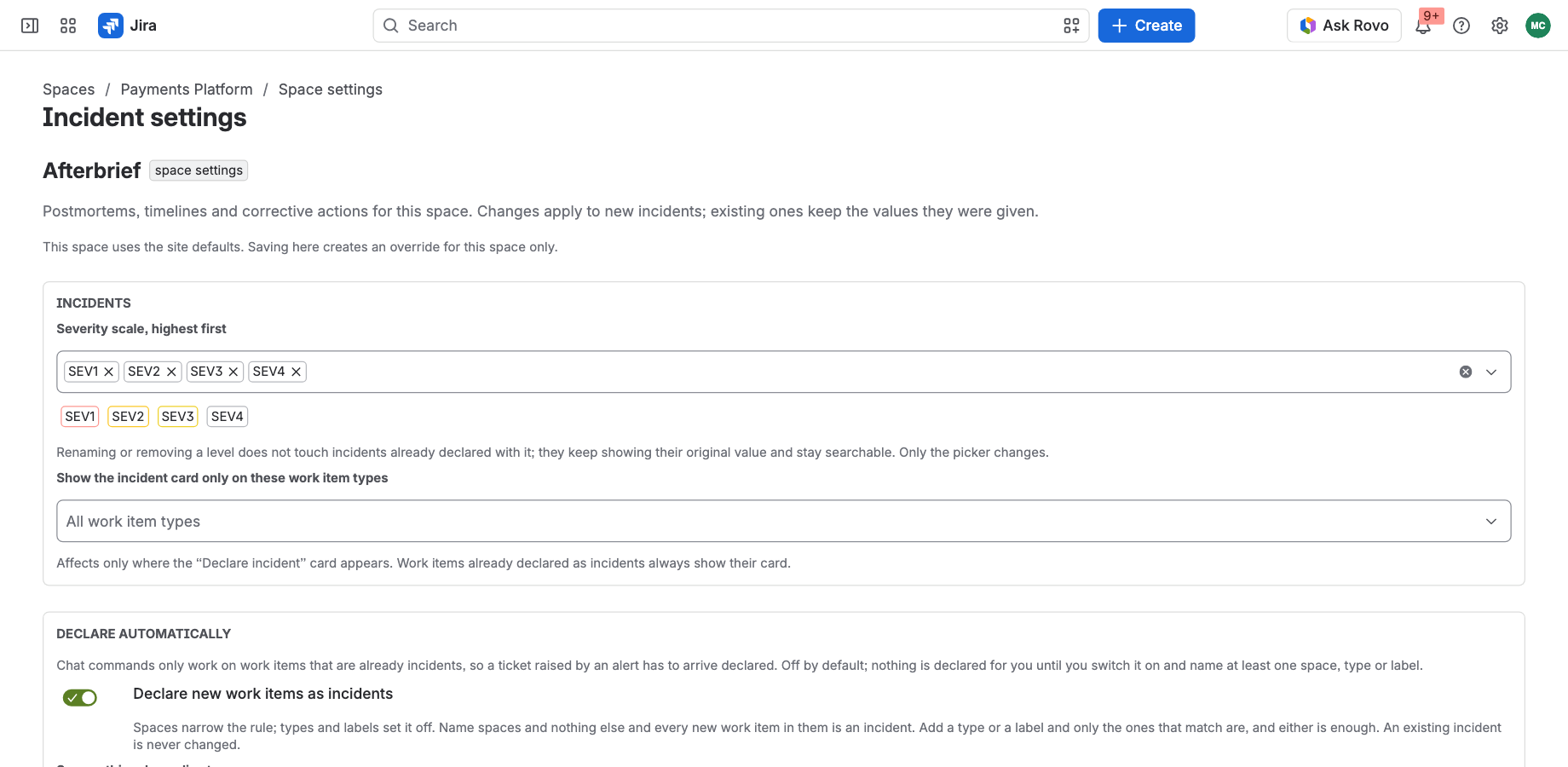
Incident settings (space settings → Apps) are per space. Afterbrief defaults (Jira settings → Apps, admins only) are what every space starts from until it saves its own.
| Setting | What it does |
|---|---|
| Severity scale | The severities, highest first. SEV1–SEV4 by default. |
| Show the incident card only on these work item types | Keeps the card off work items that will never be incidents. |
| Declare new work items | Auto-declare. If you name spaces, the rule applies only in those spaces; within them, a new work item becomes an incident when it has one of the named types or carries one of the named labels. Name no types or labels and every new work item there is an incident. Its severity comes from the priority, from a severity-named label, or is the default. Works for every creator: people, Jira Automation, email, alerting tools. Off until you switch it on. |
| Severity follows the priority | While an incident is open, changing the work item's priority changes its severity through a mapping you set. A priority you did not map leaves the severity alone, and a resolved incident keeps the severity it was handled at. The app never writes the priority. |
| Resolve on Done · Reopen when leaving Done · Statuses that mean "mitigated" | Status sync, so the incident follows the workflow you already use. Transition on resolve does the reverse: resolving in the app moves the work item. |
| Comment marker | The prefix that puts a comment on the timeline. ! by default. |
| Due days after resolution | When the postmortem is due. |
| Postmortem overdue reminder · Corrective action overdue reminder | A daily comment that mentions the commander or the owner. Off by default. |
| Confluence space for postmortem pages | Where Move to Confluence puts the page. |
| Corrective actions: space key, work item type | Where actions are created. The incident's own space and the Task type by default. |
Uninstalling and your data
Uninstalling removes the app's own storage (timeline entries, postmortem drafts kept in Jira, settings) after Atlassian's retention period. Everything the app created in Jira and Confluence stays yours: the incident work items and their properties, corrective-action work items, comments and Confluence pages. If you connected Slack, remove the Afterbrief app from Slack and ask us to delete your relay records. See the privacy policy.
Troubleshooting
- The Timeline tab is missing on a new incident. Jira decides which tabs to show when it draws the page. Press Reload to show Timeline tab on the card, or reload the page.
- "Afterbrief is not installed in Confluence on this site." Add the app to Confluence from the Marketplace, or keep the postmortem in Jira.
- "You can't create work items in ACT." Corrective actions go to the space named in the settings; ask for access to it, or ask a space admin to choose another.
- A person asks for "Allow access". Each person may be asked once to let the app act on their behalf; it is how the app reads only what that person can see.
Anything else: Support.
Prefer to start on paper? The free Jira postmortem template works with or without the app. Ready to install? Get Afterbrief on the Marketplace.